Share-sound loops
Echo when you share your screen with sound: why the audio loops back
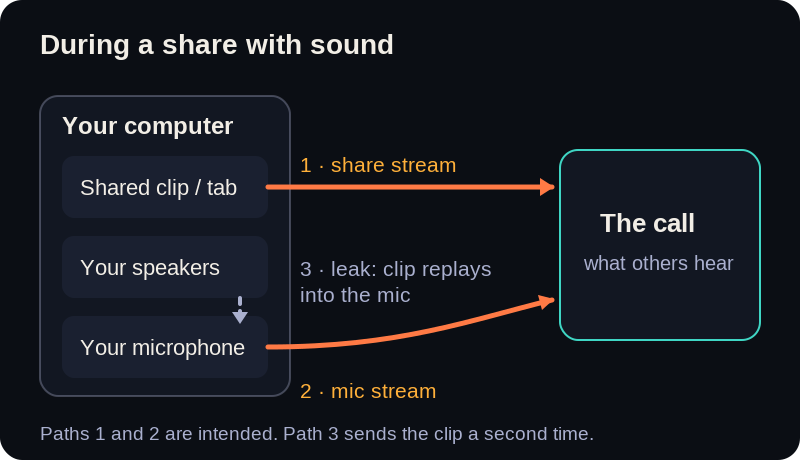
If the echo shows up the moment you share your screen with sound and disappears the moment you stop, your microphone is not broken and nobody's speakers suddenly got louder. You built a second road into the call. Sharing "computer sound" sends a separate audio stream next to your mic, and as soon as the same sound can reach the meeting by two roads, someone hears it twice. The fix is choosing which road it takes, and it usually costs nothing.
Share one window or tab with its own audio, not the whole screen with system sound. Wear headphones while the clip plays, and switch "share sound" off when the thing you're showing is silent. Only reach for software if open speakers are non-negotiable, and then pick a tool that sits on both your input and your output.
The 20-second answer: who hears it, and when did it start?
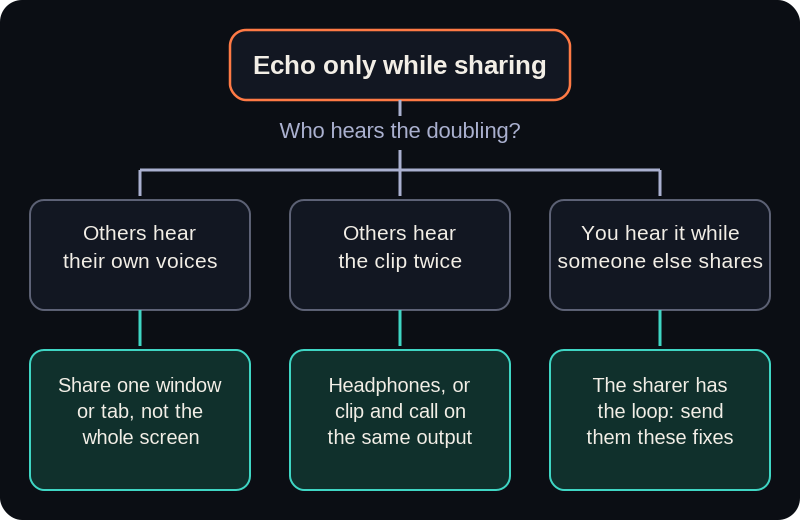
Echo during a share has three common shapes, and the person complaining tells you which one you have. Ask before you change anything.
- Other people hear their own voices come back while you share. Your share stream is carrying the call itself. You shared the whole screen with system audio, so the meeting's incoming voices, which your computer is playing, got packed into the share and sent straight back to their owners.
- Other people hear the video or demo twice, once clean and once roomy. The clean copy is the share stream. The roomy copy is your speakers playing that same clip into your microphone a few milliseconds later.
- You hear echo while someone else shares. Then the loop belongs to whoever is presenting, so forward this page to them. Hearing an echo almost never means you made it, for reasons covered here, and screen shares follow the same rule.
Timing is the other clue. If the doubling began the day you started presenting with sound, there's nothing to hunt for. If it began after you installed a mixer, a recorder or a virtual cable, a routing change is the more likely culprit (more on that below).
What "share sound" actually sends, and why it doubles
During an ordinary call your computer handles two audio jobs: it plays everyone else into your speakers or headphones, and it sends your mic to them. Turning on shared sound adds a third job: capture whatever audio the shared surface is producing and send it as its own stream. Browsers expose exactly this choice. The screen-capture interface documented on MDN lets a page hint whether system audio should be offered when a whole monitor is shared, and whether a shared window should carry only that window's audio or all system audio. Browsers can ignore those hints, and desktop meeting apps make their own choices, which is why the same button behaves differently from app to app.
The trouble is that "system audio" means everything your computer is playing. Unless the app filters its own playback out of the capture, that includes the meeting. A window or tab share is narrower by design: it carries only that window's sound, so the meeting's voices have no way in.
Why your echo canceller can't catch this copy
Acoustic echo cancellation works by subtraction. The calling app knows exactly what it just played through your speakers, so it can look for that waveform in your microphone and remove it. That's the whole trick, and it's explained in more depth in our AEC primer. The catch is the phrase "what it just played." The canceller holds a reference copy of the call audio, and only the call audio.
A video playing in your browser, a sound effect in a slide deck or a clip in a media player isn't part of that reference. When those sounds leave your speakers and land in your mic, the canceller sees speech-like sound it can't match to anything it played, so it often lets the capture through. And the copy that rides inside the share stream never touches your microphone at all, so no microphone-side canceller can do anything about it. Two of the three paths are simply outside the machinery's reach.
Fix order: zero cost first, software last
- Share the window or tab, not the screen. When the app or browser offers a choice, pick the specific window or tab that holds the video and tick its audio option. Its sound travels in the share stream; the meeting's voices stay out of it. This one change cures the "people hear themselves" shape almost every time.
- Headphones for the length of the clip. If nothing plays out loud, nothing leaks into the mic, and path three disappears. You don't need to wear them all day; two minutes of demo is enough.
- Turn shared sound off when the content is silent. Slides, spreadsheets and code walk-throughs don't need an audio stream. Leaving the option on just keeps a door open for notification chimes and the call itself.
- Keep the clip and the call on the same output device. If the meeting plays through your headset while the browser plays through your monitor's speakers, the clip comes out of a speaker the meeting app isn't even listening to. Put both on the same output, or put both on headphones.
- Lower speaker volume while you present. A quieter leak is a smaller second copy. It won't remove it, but it often drops it below what anyone notices.
- Only then, a software layer. Covered below, with the honest limits.
When it's a virtual cable, not the share
Some setups echo while sharing because of something installed long before the meeting. Virtual mixers and loopback drivers (Voicemeeter or VB-CABLE on Windows, BlackHole or Loopback on a Mac) can send your computer's playback into a device the call app treats as a microphone. Then the share is just the moment the loop becomes audible. The test is quick: stop sharing and play a short clip with your mic live. If people still hear it, the loop lives in your routing, not in the share settings. Switch the call's microphone back to a physical device for one call and see whether the echo goes with it. If you've recently set up a recorder or a streaming mixer, that's where to look first; the same pattern turns up in echo that started out of nowhere.
Does Krisp help here? What a cancellation layer can and can't remove
Partly, and it's worth being exact about which part. Krisp installs as a virtual microphone and a virtual speaker; its setup instructions tell you to pick "Krisp Microphone" for input and "Krisp Speaker" for output in your meeting app, and its noise-cancellation page (read 18 Oct 2026) says it removes background noises, voices and echoes, with an echo-cancellation component aimed at room echo and acoustic reflections. Sitting on both ends of the call gives it a view of what's being played back, which is the condition any echo canceller needs.
What it can't do is reach into the share stream. If you share the whole screen with system audio and the meeting rides along inside it, that copy never passes through any microphone, Krisp's included. And when the shared clip is people talking, a tool built to keep human voices may well keep theirs too, because to the model it is a voice. Treat software as the fix for path three on open speakers, not as a replacement for steps one and two.
| Path | What travels on it | Can a mic-side canceller remove it? | Fix that works |
|---|---|---|---|
| Share stream | The shared window, tab or whole system mix | No, it bypasses the mic entirely | Share a window or tab; turn sound off when not needed |
| Mic stream | Your voice, plus anything your speakers leak | Only the call audio it played itself | Headphones; one output device; lower volume |
| Speaker leak | The clip, re-captured by your mic | Sometimes, if the tool sees the playback | Headphones first; a system-wide layer second |
Edge cases
- Two of you present from one room. If a colleague beside you also joined the call, their laptop's mic hears your clip and their speakers play the call. That's a two-device loop, and it can howl. One device in the room, full stop.
- The echo only appears for remote viewers on phones. Their phone plays your share out loud and their mic sends it back. It's their loop; mute-in-turn will confirm it in a minute.
- The shared audio sounds hollow but not doubled. That may be the room your speakers sit in, re-captured, not an echo. The difference is spelled out in echo vs reverb.
- You hear yourself in your own headset while sharing. Check for monitoring or sidetone before blaming the share; sidetone looks a lot like echo from the inside.
Questions
Why do others hear echo only when I share my screen?
Because sharing with sound opens a second audio stream. If it's a whole-screen share with system audio, it can carry the meeting's own voices back to the people who spoke. If your speakers are on, your mic also re-captures whatever the clip plays. Share a single window with its audio and wear headphones for the clip.
Should I turn off "share computer sound"?
Turn it off whenever the content is silent. Keep it on only when the audience needs to hear the clip, and then share that one window or tab rather than the entire screen, so the meeting audio isn't swept into the stream.
Why doesn't the meeting app's echo cancellation catch it?
Its canceller subtracts only the call audio it played itself. A browser video or media player is outside that reference, and the copy inside the share stream never passes through your mic. Neither copy is something a microphone-side canceller is built to remove.
Will headphones alone fix echo while sharing?
They fix the speaker-leak copy, which is the most common one. They won't fix a whole-screen share that carries the meeting's voices; for that you need to change what you share. Use both habits together and most share echo is gone.
Can echo cancellation software stop it on open speakers?
It can shrink the leak your mic picks up if the tool sits on both your input and output. It can't touch audio inside the share stream, and a voice-preserving tool may keep speech from the clip. Treat it as the last step, after the free fixes.