When the classic fix fails
Still echoing with headphones on? Five causes headphones can't fix
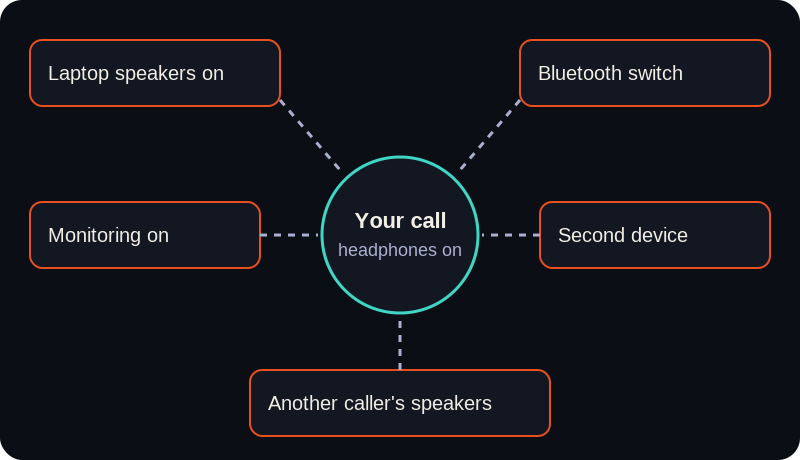
Headphones are the standard cure for echo because they remove the speaker from the loop. If the far side still hears their voices coming back after you put them on, the loop runs through something other than your speakers. Buying a different headset rarely changes that. Below are the five non-speaker causes we see most, each with a check that takes about three minutes, in the order worth trying.
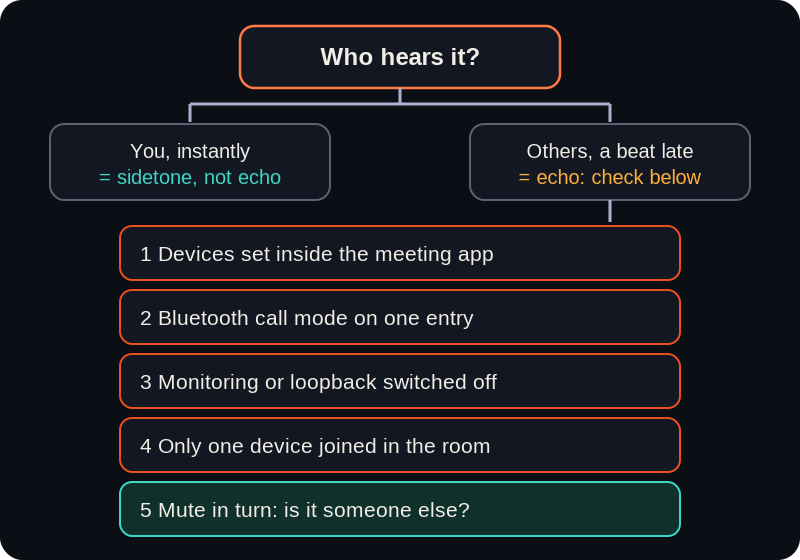
First confirm it's echo and not sidetone. Then check, in order: is the call actually playing through the headphones and recording from their mic? Did Bluetooth switch you into call mode on a different device entry? Is a monitoring or "listen" setting on? Has a second device joined the call in the same room? And is the echo even yours? One of those five explains nearly every case.
First: is it echo, or is it sidetone?
The person who hears the problem decides which one you have. If you hear your own voice instantly in your ears, with no gap, that's sidetone or monitoring: the headset or the app deliberately feeding your mic back to you. It's harmless, often adjustable, and explained on our sidetone page. Noise-cancelling headphones with an ambient or transparency mode can produce a similar effect. Echo is different: the other people on the call hear their voices come back a beat late. Everything below is about that second case.
Cause 1: your app is still using the laptop's speakers or mic
Plugging in headphones doesn't guarantee the call uses them. Many meeting apps remember a specific device rather than following the system default, so the call can keep playing through the laptop speakers while your music moves to the headphones. That's an open-speaker loop with headphones on your head as a decoration. The opposite mismatch matters too: headphones on, but the mic in use is the laptop's built-in one, sitting a few centimetres from speakers that are still active.
The check: open the meeting app's audio settings, not the system's, and read both lines. Speaker should name your headphones; microphone should name the headset mic or a mic you chose on purpose. Then play the app's test sound: if it comes from the laptop, you've found it.
Cause 2: Bluetooth's call mode swaps your devices
Bluetooth headsets carry calls on a different profile from music. The Hands-Free Profile moves a mono voice channel in both directions; music uses a separate stereo profile that only plays. Many computers therefore list one headset twice, once for listening and once for calls, and the meeting app may grab a different entry from the one your system is using. Results vary: the call plays from the laptop while the headset mic records, or the headset reconnects mid-call and the app quietly falls back to built-in speakers.
The check: in the meeting app, select the headset's call entry for both speaker and microphone, so they belong to one device. If the headset dropped and reconnected during the call, re-select it; apps often don't switch back on their own. Bluetooth's call mode also narrows the sound, which is why voices go thin at the same moment, a side effect rather than a fault.
Cause 3: a monitoring or loopback setting
Some settings send your microphone, or your computer's playback, somewhere it doesn't belong. Windows has a "Listen to this device" checkbox (classic Sound panel, Recording tab, your mic, Properties, Listen) that plays the mic through a chosen output. Virtual mixers and recording tools can route the call's audio into a device the call then records from. With headphones on, you won't hear any of this as feedback, but the people on the other end hear the result.
The check: switch off any "listen," "monitor" or "hear yourself" option, and if you've installed a mixer, recorder or virtual cable, set the meeting's microphone back to a physical mic for one test. If the echo stops, the routing was the loop.
Cause 4: a second device in the room joined the call
This one fools careful people. You're on the laptop in headphones, but your phone is also in the meeting, maybe to share a document or because the calendar link opened in two places. The phone plays the call out loud; your headset mic, or the laptop mic, hears it; the call gets a copy. The same happens when a colleague in the same room joins from their own machine. Headphones only protect the device they're plugged into.
The check: look at the participant list for you twice, or for anyone sitting near you. Leave the call on every device but one. If the second device must stay, mute it and turn its volume to zero. When two devices in one room both play and record, the result can escalate from echo to a howl.
Cause 5: it's not you, it's another participant's speakers
Echo is heard by the people whose voices are being looped, and it's caused by whoever has the loop. If you're the one complaining, your headphones were never relevant. If others complain, one person's open speakers can still make it sound as if the whole call echoes, and you may be the unlucky suspect because you speak the most. Mute in turn and listen: the echo disappears when the culprit's mic goes silent. Our two-minute culprit hunt walks through the method.
| Cause | Tell-tale sign | Three-minute check |
|---|---|---|
| Wrong device in the app | Test sound plays from the laptop | Set speaker and mic inside the meeting app |
| Bluetooth call mode | Voice turns thin; headset listed twice | Pick the headset's call entry for both |
| Monitoring or loopback | Started after installing audio tools | Turn off "listen"; test with a physical mic |
| Second device joined | You appear twice in the participant list | Leave the call on all but one device |
| Another participant | Echo stops when someone else mutes | Mute in turn until it stops |
When headphones are fine and the echo is chronic
If you've worked through all five and the echo is truly coming from your setup on certain calls, you're probably switching between headphones and speakers through the day, and the speaker hours are the problem. That is where a system-wide cancellation layer earns its place, because it doesn't depend on remembering the headset. Krisp is one example; on 18 Oct 2026 its product page described removing background noise, other voices and echo from calls, through desktop apps for Windows and macOS. A week's trial with nothing locked and no card comes first; then Core costs $8 per seat a month on an annual plan. Our software comparison sets it beside the free options.
Questions
Why do people hear echo when I'm wearing headphones?
Because the loop isn't running through your ears. The meeting may still be using the laptop speakers or mic, Bluetooth may have switched devices, a monitoring setting may be on, or a second device in the room joined the call. It may also be someone else's speakers.
Can a Bluetooth headset cause echo on a laptop?
Indirectly. When the headset's mic engages it switches to a call profile, and the meeting app can end up with mismatched devices, for example the call playing from the laptop while the headset records. Choose the headset's call entry for both speaker and mic in the app.
Is hearing myself in my headset the same as echo?
No. An instant copy of your own voice in your ears is sidetone or monitoring. Echo is other people hearing their voices come back late. Sidetone is usually a setting you can turn down or off.
Should I buy a better headset to stop echo?
Not until you've ruled out the five causes above, because none of them depend on the headset. We don't recommend hardware; the free device and routing checks fix the majority of cases.
How do I know if the echo is my fault?
Mute your mic for a few sentences while others talk. If the echo stops while you're muted, it's yours; if it carries on, it's someone else's. Repeat person by person until it stops.